
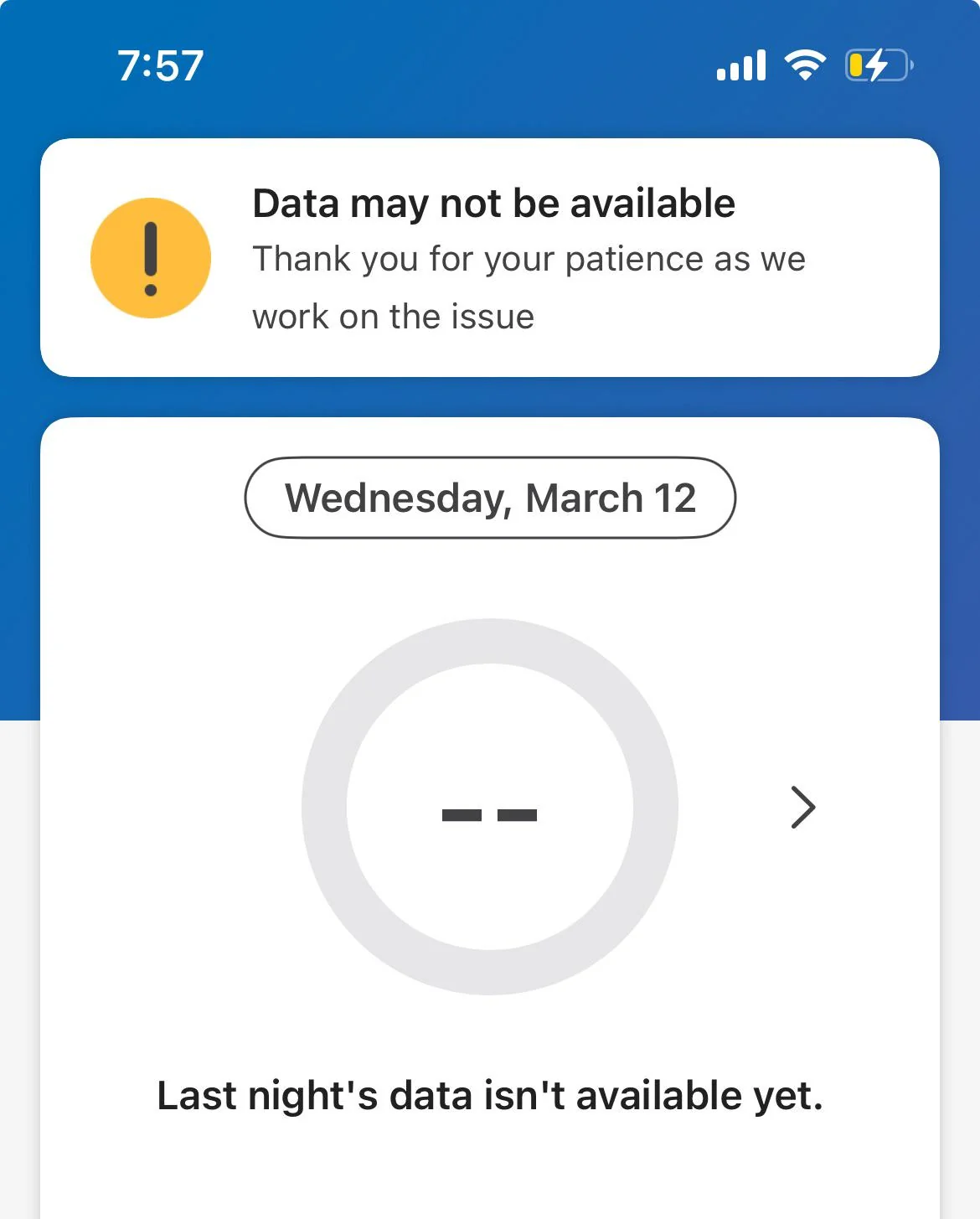
You walk out the front door, switch from Wi-Fi to 5G, open the MyAir app and nothing. It just sits there, spinning, refusing to connect. But the moment you get back home and reconnect to Wi-Fi, it works perfectly.
If this sounds familiar, you’re not alone. Remote access issues with the MyAir smart controller are one of the most common complaints we hear from ducted air conditioning owners across Sydney. The good news? Most of the time, it’s fixable without a technician callout.
This guide walks you through every known cause and every fix.
In this guide, AirMax Air Conditioning explains every known cause and every fix, from simple settings you can check right now to the trickier network issues that often get overlooked, and when it is time to call a technician.
Why MyAir Works on Wi-Fi but Not Mobile Data
The short answer: MyAir was originally designed to communicate over your local home network. When you’re on Wi-Fi at home, your phone and the MyAir tablet are on the same network, so they can talk directly. When you leave home and switch to mobile data (4G or 5G), that direct local connection disappears.
Remote access over mobile data relies on the MyAir tablet being reachable via the internet, which introduces a whole different set of requirements. Here’s what has to work for remote access to succeed:
| Requirement | Why It Matters |
|---|---|
| Internet-connected MyAir tablet | The tablet must stay online and awake. If it drops off the network, remote access fails. |
| Stable home router/modem | Your home internet needs to stay consistently online so the app can reach the tablet. |
| No VPN on your phone | VPNs reroute traffic and can block the connection to your home system. |
| Standard MAC address | Randomised MAC addresses can confuse the network and cause the device to be treated as unknown. |
| Compatible app versions | If the MyAir app and AA Service app are on incompatible versions, remote communication can break down. |
The frustrating part is that many of these issues look identical from the outside. The app just says it can’t connect; it doesn’t tell you which of the five things above is actually broken.
MyAir App Not Connecting Remotely: Common Causes and Fixes
Here are the most common causes of MyAir remote access failures, ranked from easiest to fix to most complex:
| # | Cause | How to Check | Fix |
|---|---|---|---|
| 1 | VPN is active on your phone | Check VPN apps or phone settings | Turn off all VPNs before launching MyAir |
| 2 | Randomised MAC address is on | Go to Settings > Wi-Fi > your network > MAC address setting | Set it to “Use device MAC” instead of randomised |
| 3 | MyAir tablet has lost internet | Check the tablet screen when you are at home | Reconnect the tablet to your Wi-Fi network manually |
| 4 | Tap to Wake is turned off | Check tablet settings within the MyAir app | Enable Tap to Wake so the tablet stays responsive |
| 5 | App version mismatch or known bug | Check the App Store or Google Play for updates | Update both the MyAir app and the AA Service app |
| 6 | Mesh network routing issue | Check if the tablet is on the same mesh node as when it was set up | Review the mesh Wi-Fi settings and reconnect the tablet if needed |
Smart Air Conditioning Not Connecting Outside the Home? Here’s What to Check
Before booking a service call or assuming it’s a software problem, run through this checklist. These are the home network and device settings that most commonly cause remote access to break — and they are almost always overlooked.
| What to Check | What You’re Looking For | Status |
|---|---|---|
| VPN on your phone | Must be completely off | Check before every remote session |
| Private/randomised MAC address | Must be disabled for your home Wi-Fi network | Set once, stays off per network |
| MyAir tablet’s Wi-Fi connection | Tablet must be online and showing a stable connection | Confirm when next at home |
| Tap to Wake setting on the tablet | Must be enabled so the tablet wakes on incoming remote requests | Check in MyAir tablet settings |
| Mesh Wi-Fi network, such as TP-Link Deco | Check if AP isolation or client isolation is enabled on any node | Disable AP/client isolation if found |
| ISP CGNAT, Carrier-Grade NAT | Some ISPs place multiple homes behind one public IP, which may block inbound connections | Contact your ISP to confirm or request a public IP |
| Modem/router reboot | A simple restart can clear many session and DNS issues | Power cycle modem and router/mesh nodes |
A note on mesh systems: Mesh Wi-Fi networks like TP-Link Deco, Google Nest, and Eero are generally reliable, but some models have AP isolation enabled by default. This prevents devices on the mesh from communicating with each other or with external connections. If your MyAir tablet is on a mesh node different from your router, check the Deco app settings for any isolation or firewall rules that may be blocking the connection.
MyAir App Says It Needs an Update but Everything Is Updated — What Now?
This is one of the most frustrating situations MyAir users report. The app displays an error suggesting an update is required, but when you check the App Store or Google Play, everything is already on the latest version.
Here’s what’s actually happening and what you can do:
| Scenario | What It Means | What to Do |
|---|---|---|
| MyAir app last updated March 2024/2025 | You are on the latest available version, and no newer version exists yet | Log a support ticket with Advantage Air and reference the error message |
| AA Service app last updated 2020 | This may be a known issue where Advantage Air has not released a newer version of the service layer app | Confirm you have admin privileges enabled on the AA Service app |
| Error appears after re-pairing your device | Deleting the device and re-pairing may cause it to auto-reconnect without completing proper authorisation | Do not delete and re-pair unless directed by Advantage Air support, as it may not resolve remote access issues |
| Advantage Air support says it is a firmware issue | The tablet firmware may be out of date even if the phone app is current | Ask your installing technician to check the firmware version on the tablet controller directly |
How to Fix MyAir Remote Access Problems on iPhone and Android
The steps differ slightly between iPhone and Android. Work through these in order before calling a technician.
| iPhone (iOS) | Android |
|---|---|
| Go to Settings > Wi-Fi > tap your home network > set “Private Wi-Fi Address” to Off | Go to Settings > Wi-Fi > tap and hold your home network > Manage network settings > set MAC address type to “Phone MAC” |
| Check Settings > General > VPN and Device Management and make sure no VPN profile is active | Check Settings > Network > VPN and make sure all VPN connections are disabled |
| Delete the MyAir app and reinstall it from the App Store. Do not factory reset the tablet — only reinstall the phone app | Uninstall MyAir from your Android device, restart your phone, then reinstall it from Google Play |
| Check your iOS version and make sure your iPhone is running the latest iOS update | Check your Android version and make sure battery optimisation is not stopping the MyAir app |
| Go to Settings > Mobile Data and make sure MyAir has mobile data access enabled | Go to Settings > Apps > MyAir > Mobile data and make sure “Allow background data usage” is on |
MyAir Remote Access Not Working After an App Update
App updates are meant to improve things. But with MyAir, an app update can sometimes break remote access that was working perfectly before.
This usually happens because the update changes how the app authenticates with the controller, and if the tablet firmware hasn’t been updated to match, the two fall out of sync. And if your system needs a hands-on inspection, our team offers air conditioning maintenance and servicing across Sydney.
If your remote access stopped working after you updated the app, here’s what to check:
| Step | Action Required |
|---|---|
| Check if the issue is app-side or network-side | Test remote access on a second phone with the same app version. If it also fails, the issue is likely the tablet or network, not your phone. |
| Check the tablet firmware version | Open the MyAir app while on Wi-Fi at home, go to Settings, and check the firmware version displayed. Compare this against Advantage Air’s latest release notes. |
| Log a ticket with Advantage Air support | Include your app version, AA Service version, tablet firmware version, router brand/model, and a clear description of when the issue started. |
| Contact your installing technician | If Advantage Air confirms the firmware needs updating, your installer can attend and update the controller tablet directly. This is usually not something you can do remotely yourself. |
Could Your Wi-Fi or Mesh Network Be Causing the Problem?
Yes, it is possible.
One of the most overlooked causes of MyAir remote access failures is the home Wi-Fi network itself. Most people assume if the internet is working, the network is fine. But for smart home devices like the MyAir tablet, how your network is configured matters just as much as whether it is online.
Mesh systems like TP-Link Deco, Google Nest Wi-Fi, and Eero are increasingly popular in Australian homes and are generally excellent. But they introduce specific network behaviours that can silently break smart device connectivity.
| Network Issue | What It Does | How to Fix It |
|---|---|---|
| AP Isolation / Client Isolation | Prevents devices on the same network from seeing each other. The tablet may become invisible to the app. | Disable it in your router or mesh app settings. Look for “AP Isolation”, “Client Isolation”, or “Device Isolation”. |
| Dual-band conflict, 2.4GHz vs 5GHz | If your phone is on 5GHz Wi-Fi and the tablet is on 2.4GHz, some routers may treat them as separate subnets and block communication. | Use a single merged SSID if your router supports it, or manually connect both devices to the same band. |
| Mesh node roaming / IP change | The tablet may roam to a different mesh node, changing its IP and interrupting its connection with MyAir. | Assign the tablet a static or reserved IP through your router DHCP settings so it keeps the same address. |
| ISP CGNAT, Carrier-Grade NAT | Your ISP may share one public IP across multiple homes, which can block inbound remote connections. | Contact your ISP and ask if you are behind CGNAT. Request a dedicated public IP if needed. |
| Router firewall blocking ports | Some routers have strict firewalls that may block the ports or traffic MyAir needs to reach cloud servers. | Check your router firewall settings and make sure outbound smart-device traffic is not restricted. |
When to Call a Technician for MyAir or Smart AC Control Problems
Most MyAir remote access problems can be resolved by the homeowner. But there are situations where the issue goes beyond what you can fix yourself. Air-Max provides ducted AC repairs across Sydney, including smart controller and connectivity issues.
Here’s a clear guide on when DIY troubleshooting ends and a professional technician visit is needed.
| Situation | DIY or Technician? | Why |
|---|---|---|
| VPN or MAC address was causing the issue | DIY | Phone settings only — no specialist required |
| App reinstall fixed the problem | DIY | Resolved at app level |
| Remote access fails after all troubleshooting steps | Technician | Likely a firmware or controller hardware issue |
| Tablet firmware is out of date | Technician | Firmware updates must be performed by the installing technician on-site |
| MyAir tablet is unresponsive even at home on Wi-Fi | Urgent Technician | Could indicate a hardware fault with the controller itself |
| Your ducted system is not responding to commands, even locally | Urgent Technician | The problem is no longer just the app — the ducted system or controller needs inspection |
TP-Link Deco users: Open the Deco app, go to More > Advanced and check for any isolation or firewall settings. Also confirm whether your Deco is in Router Mode or Access Point Mode. If it’s in Access Point Mode with a separate ISP modem, smart device traffic can be blocked at two different points.
If you’re running Deco behind an ISP modem, make sure the Deco is set as the primary router to avoid double-NAT issues.
Still Having Trouble with Your MyAir System?
If you’ve worked through every step above and your MyAir remote access still isn’t working, it’s time to get a professional on site. Our team has been servicing ducted air conditioning systems across Sydney for over 30 years.
| Book a Service Call |
